Creating Samples
The sample is the physical specimen taken from a subject. A sample owns the sequencing files (VCF, BAM, FASTQ) and the metadata describing how the specimen was collected and processed.
Every analysis runs on a sample — the files you add to a sample are what its pipelines consume.
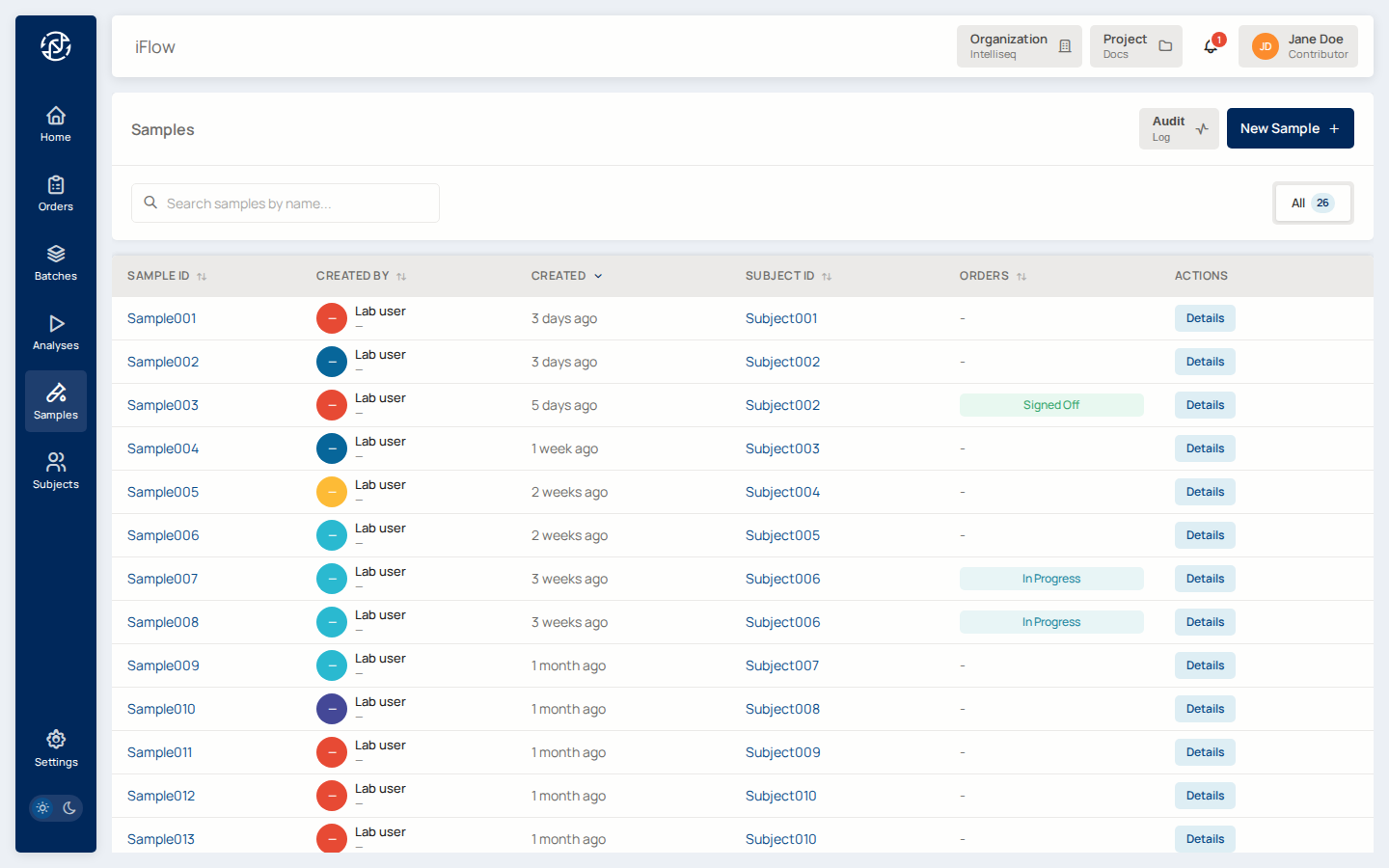
Creating a sample
- Open Samples from the left nav and click New Sample.
- Choose the Subject this sample was taken from.
- Enter a Sample ID — a human-readable identifier, unique within the project (e.g.
NA12878-DX-01). - Optionally add specimen metadata: specimen type, collection date, sequencing type, and any other identifiers your workflow needs.
- Optionally attach the sample's data files (VCF, BAM, FASTQ) now — or add them later from the sample's detail page. See Uploading Data Files.
- Click Create Sample.
Creating a sample requires a project Contributor or Admin role.
Where things live in the UI
- Samples list —
/samples. Browse and search the project's samples. - Sample detail —
/samples/{sample_id}. View the sample's metadata, its subject, the orders it participates in, and its uploaded files. - New sample —
/samples/new. Create a sample by choosing a subject, entering a Sample ID, and adding optional specimen metadata.
Related reading
- Subjects — where samples come from.
- Orders — how samples participate in a case.
- For scripted creation, manifest upload, and samplesheet generation, see CLI → Managing Samples.
- Analyses — how a sample's files feed a pipeline.