Creating Subjects
The subject is the patient whose material is being tested. A subject carries demographics and external identifiers and links to one or more samples.
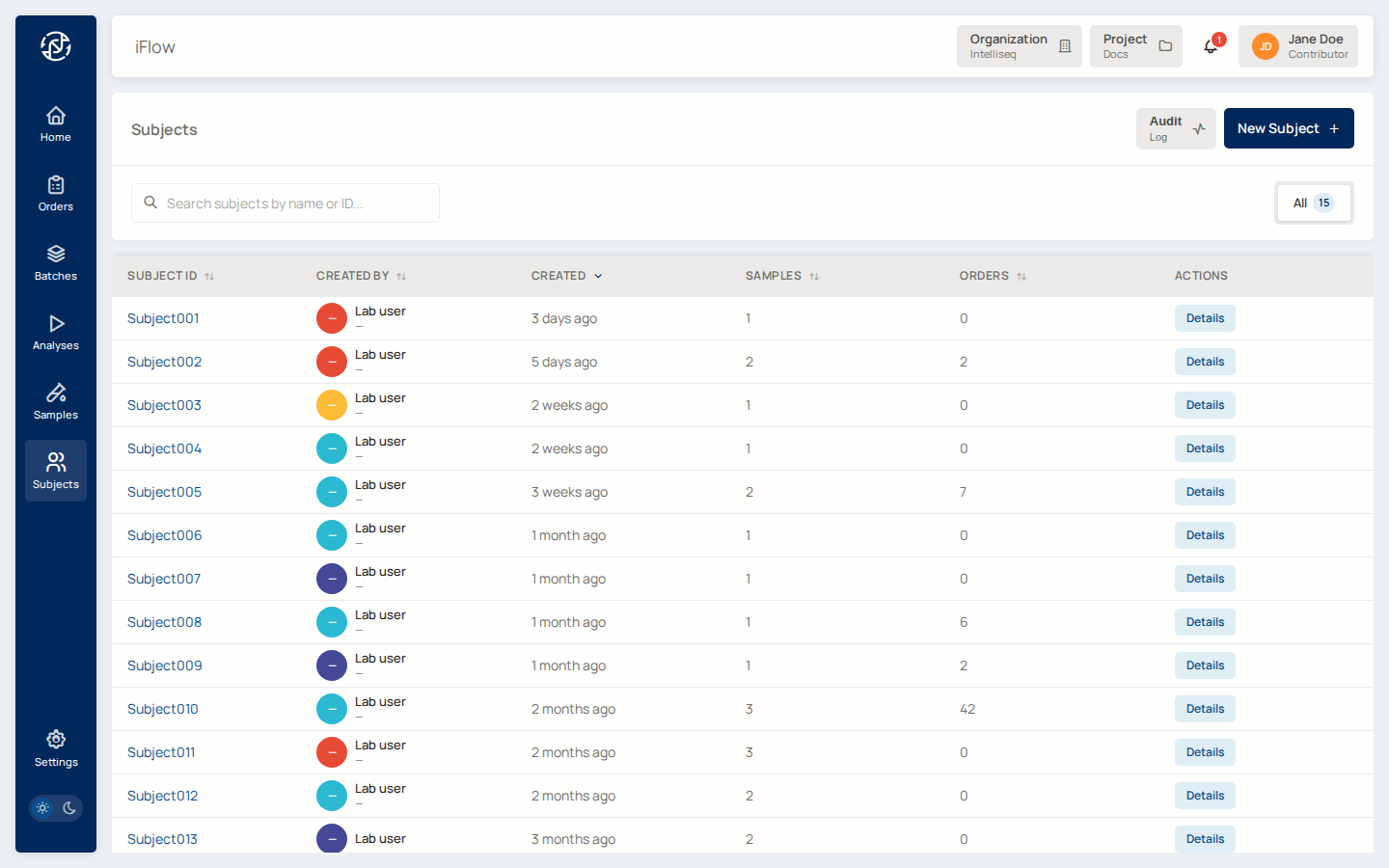
Creating a subject
- Open Subjects from the left nav and click New Subject.
- Enter a Subject ID — a human-readable identifier, unique within the project (e.g.
NA12878-DX). - Optionally add demographic and clinical details: name, biological sex, date of birth, and free-text clinical notes.
- Click Create Subject.
Creating a subject requires a project Contributor or Admin role.
A subject is created, can be linked to samples, and updated at any time.
Where things live in the UI
- Subjects list —
/subjects. Browse and search the project's subjects. - Subject detail —
/subjects/{subject_id}. View a subject's demographics and its linked samples. - New subject —
/subjects/new. Create a subject by entering a Subject ID and optional demographic details such as date of birth or biological sex.
Related reading
- Samples — the specimens drawn from subjects.
- Intake workflow.
- For scripted or automated subject management, see CLI → Managing Subjects and the API reference.